

PowerSchool has been leading the way in providing AI tools created for the unique needs of K-12 education. We created PowerBuddy to ensure that students, educators, and families can all benefit from the latest AI technology through safe and trusted edtech solutions.
Building on CEO Hardeep Gulati’s comments about his White House visit and Chief Product and Innovation Officer Shivani Stumpf’s keynote at EDGE, we’d like to share the details of the free PowerBuddy features we’re offering to support AI use in education around the world.
What are we offering?
PowerBuddy AI is available in numerous PowerSchool solutions, supporting all types of K-12 technology needs. Here are the PowerBuddy features we’ve made available at no cost in our systems.
PowerSchool SIS
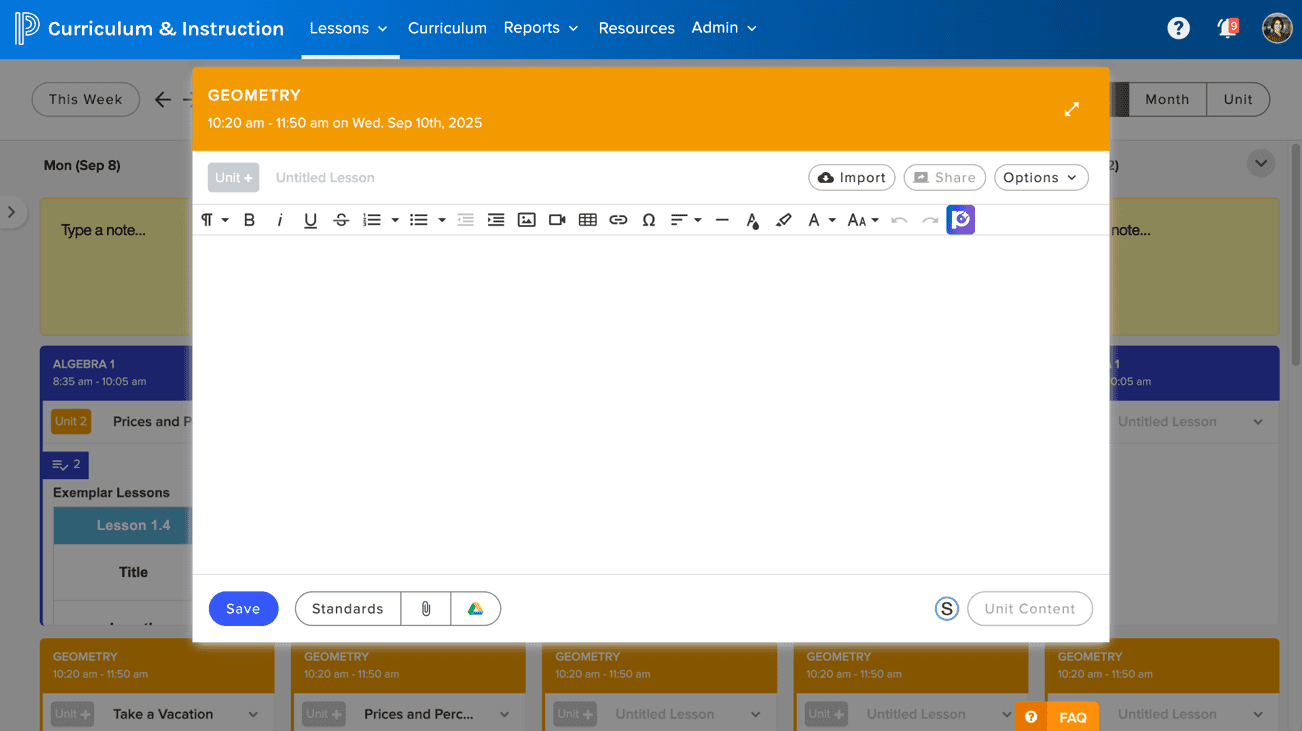
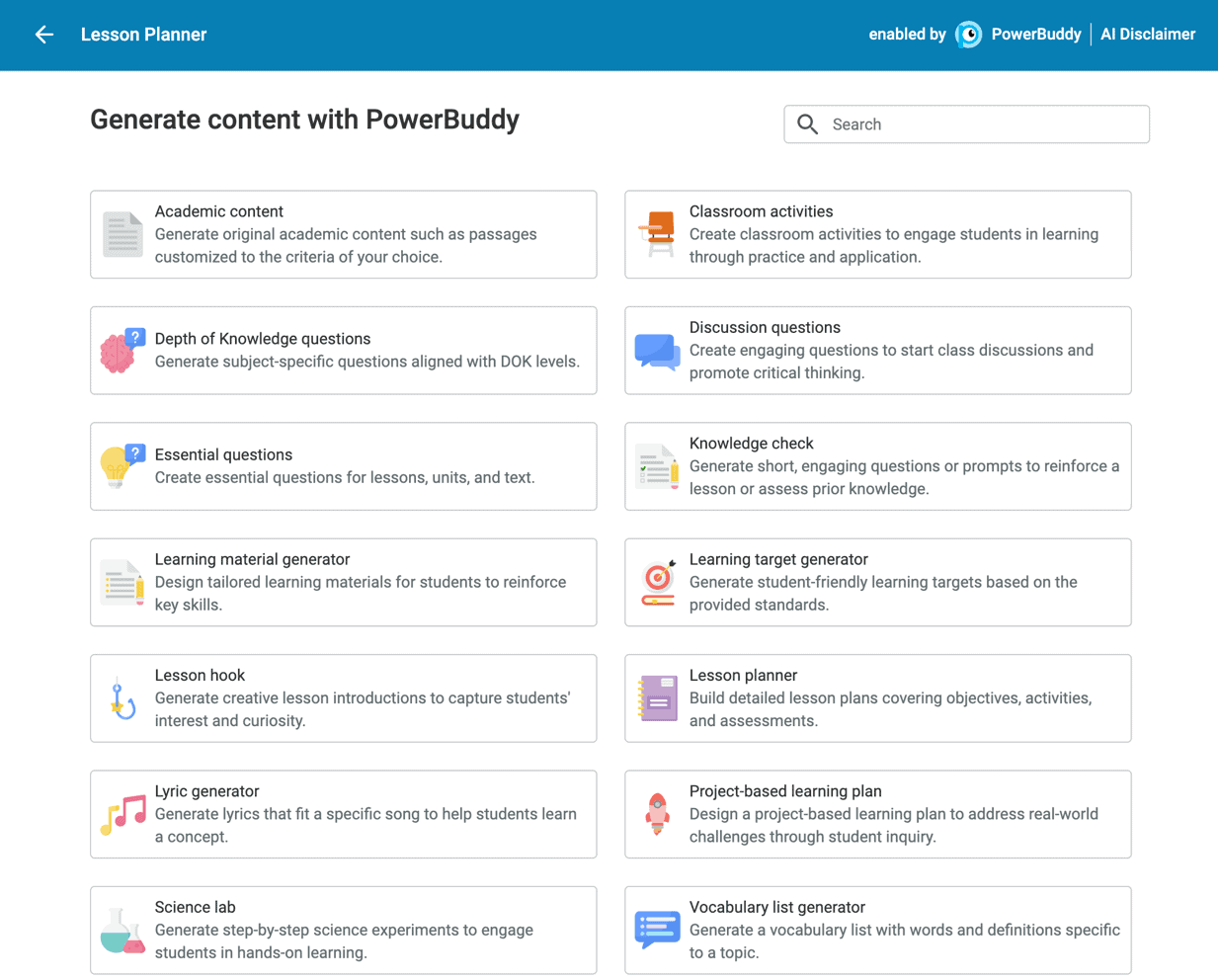
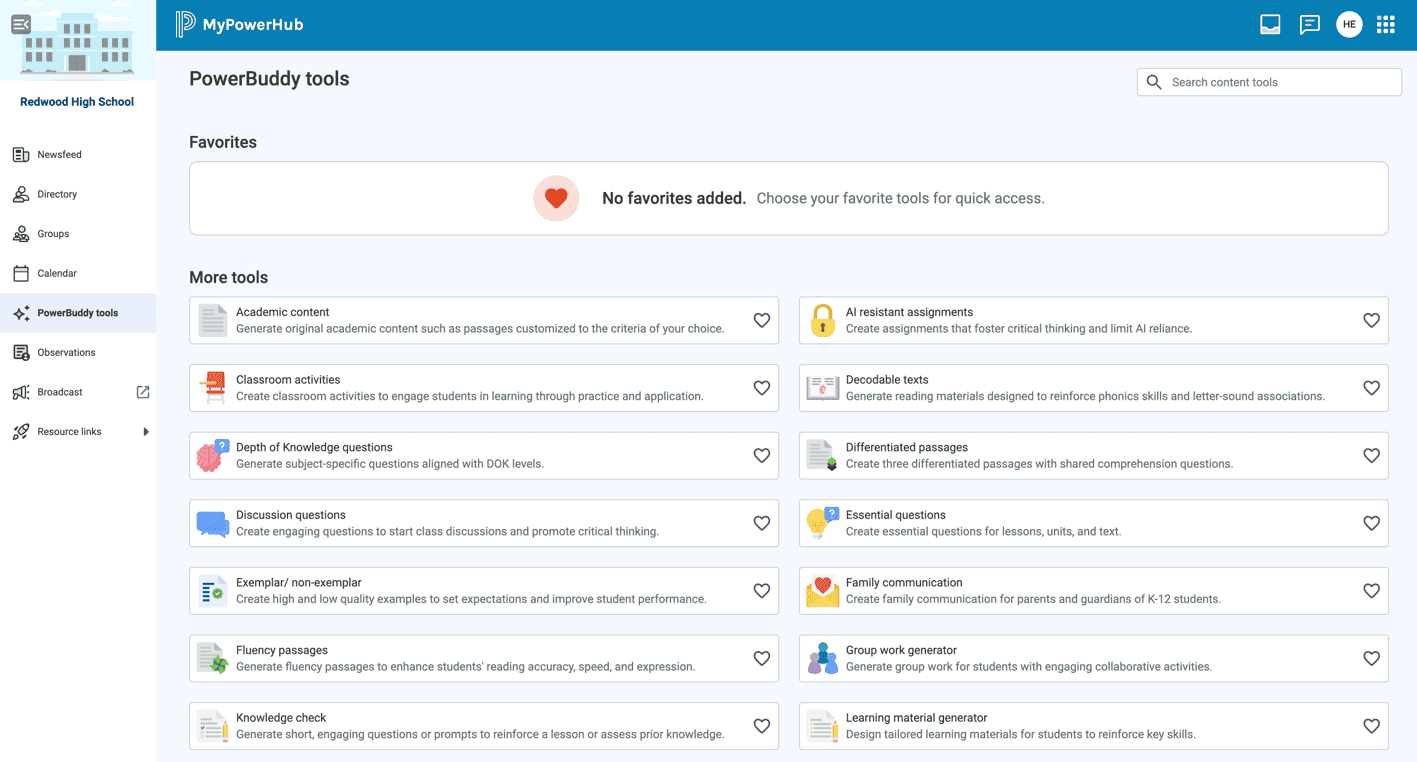
PowerBuddy generative AI tools are available for teachers to create instructional content in the Lesson Planner module and in the MyPowerHub Educator Portal in PowerSchool SIS.
Dozens of tools make it even easier to quickly generate commonly used types of content. Just choose the tool that fits what you want to create and PowerBuddy makes it simple to get what you need. Here are some of the more popular tools:
- Reading Passages
- Classroom Activities
- Discussion Questions
- Bell-Ringers
- Knowledge Checks
- Study Guides
- Family Communication
PowerBuddy Access in Lesson Planner
PowerBuddy access in MyPowerHub Educator Portal
Here’s how admins can activate PowerBuddy in PowerSchool SIS:
- Access Lesson Planner and Click on Admin
- Choose Organization Settings
- Click on the PowerBuddy Settings tab
- Enable options (lesson planner)
- Assign the PowerBuddy AI Creator role to users individually or for whole organizations
Schoology Learning
PowerBuddy generative AI tools for educators make it easy to create all sorts of content in Schoology Learning. These tools can be accessed in the Lesson Planner, Assignment Creator, Discussion Board, and for general use in any other area of Schoology Learning. Content is easily customized based off standards, grade level, and language. PowerBuddy is embedded directly in the workflows for building assignments, discussions, and lesson plans, making it simple and quick to give students the type of content they need.
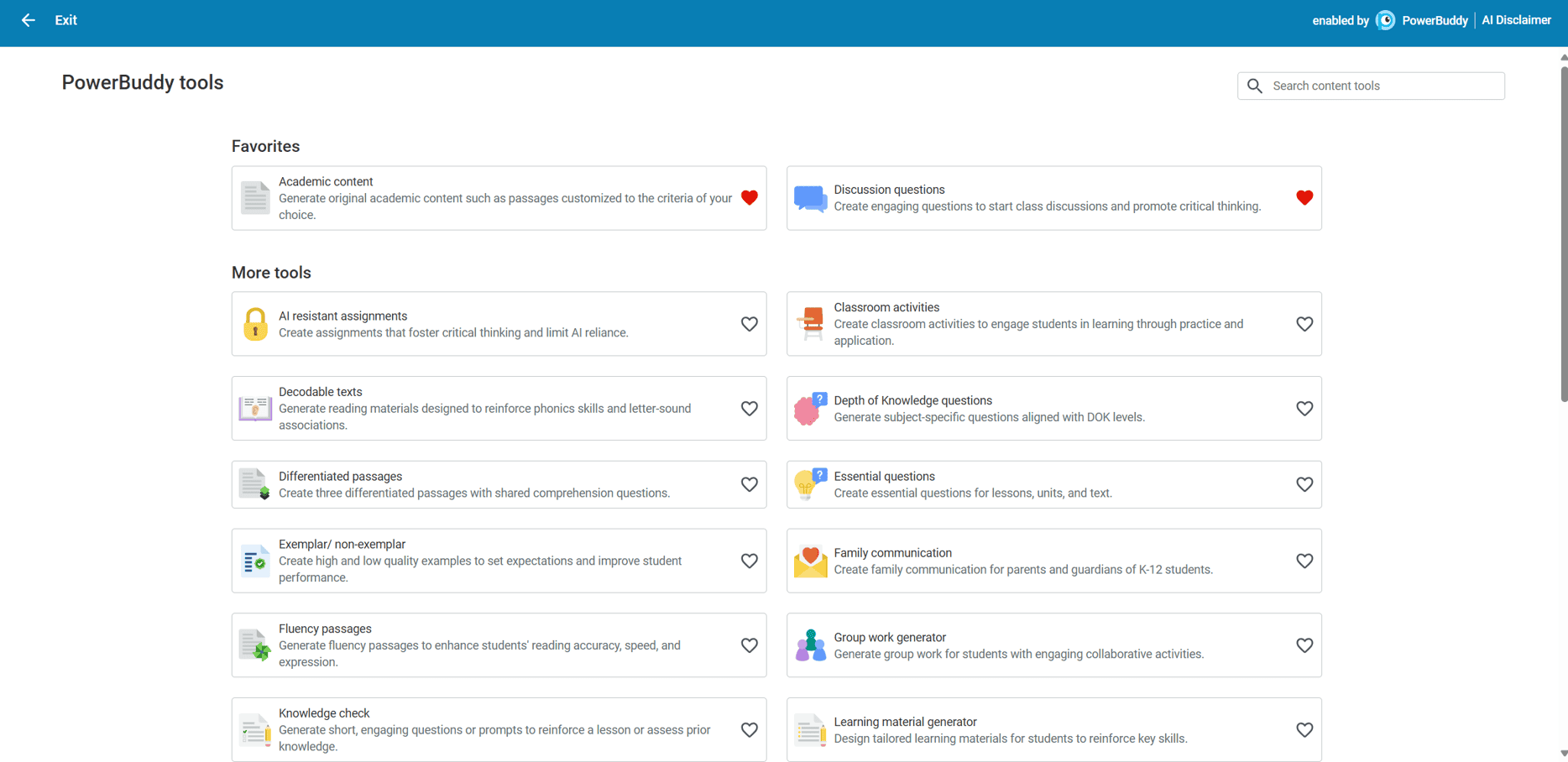
Here’s how admins can activate PowerBuddy in Schoology Learning:
- Login to Schoology Learning
- Click on Tools
- Choose PowerBuddy Settings
- Click on PowerBuddy for Learning
- Click on Manage Schoology user permissions to give user roles access
Curriculum & Instruction
PowerBuddy is built into the workflows for both curriculum mapping and lesson planning in Curriculum & Instruction. PowerBuddy tools are tailored to each step of the curriculum mapping process and content for lesson planning is easily aligned to standards, grade level, and language.

Here’s how admins can activate PowerBuddy in Curriculum & Instruction:
- Click on Admin
- Choose Organization Settings
- Click on the PowerBuddy Settings tab
- Enable options (lesson planner and/or curriculum maps)
- Assign the PowerBuddy AI Creator role to users individually or for whole organizations
Naviance CCLR
PowerBuddy college and career planning tools are available in Naviance CCLR to help students plan for their futures.
- College Exploration: Help students identify and connect with colleges that fit their interests and academic strengths.
- Career Exploration: Students can easily get answers to their career questions, including localized demand and average salaries.
- District Management: Allotment monitoring, individual student opt- out, concerning email alerts, student chat logs and summarization.
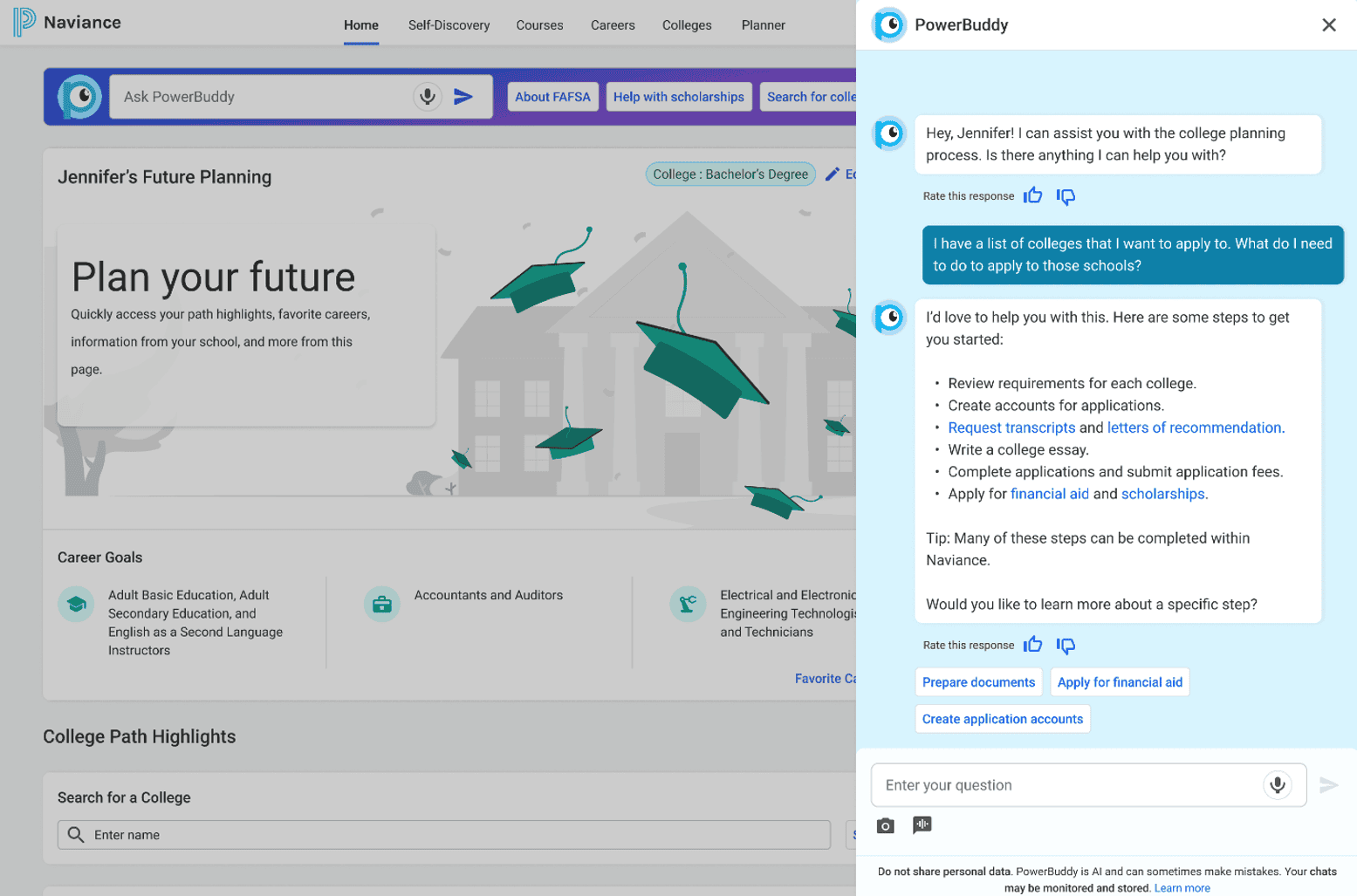
Here’s how admins can activate PowerBuddy in Naviance CCLR:
- Log into Naviance CCLR and go to the school level.
- Navigate to Connections, then select Naviance Student.
- Choose Select and Update Optional Features.
- Under Homepage select the corresponding checkboxes to enable PowerBuddy by grade level.
- Click Update Features at the bottom of the page.
MyPowerHub
We are excited to expand the MyPowerHub platform from students and families to include teachers! This modern user experience includes PowerBuddy Tools: a new K-12 focused AI content generation feature that saves teachers time by generating content like review questions, lesson plans, family communications, and more.
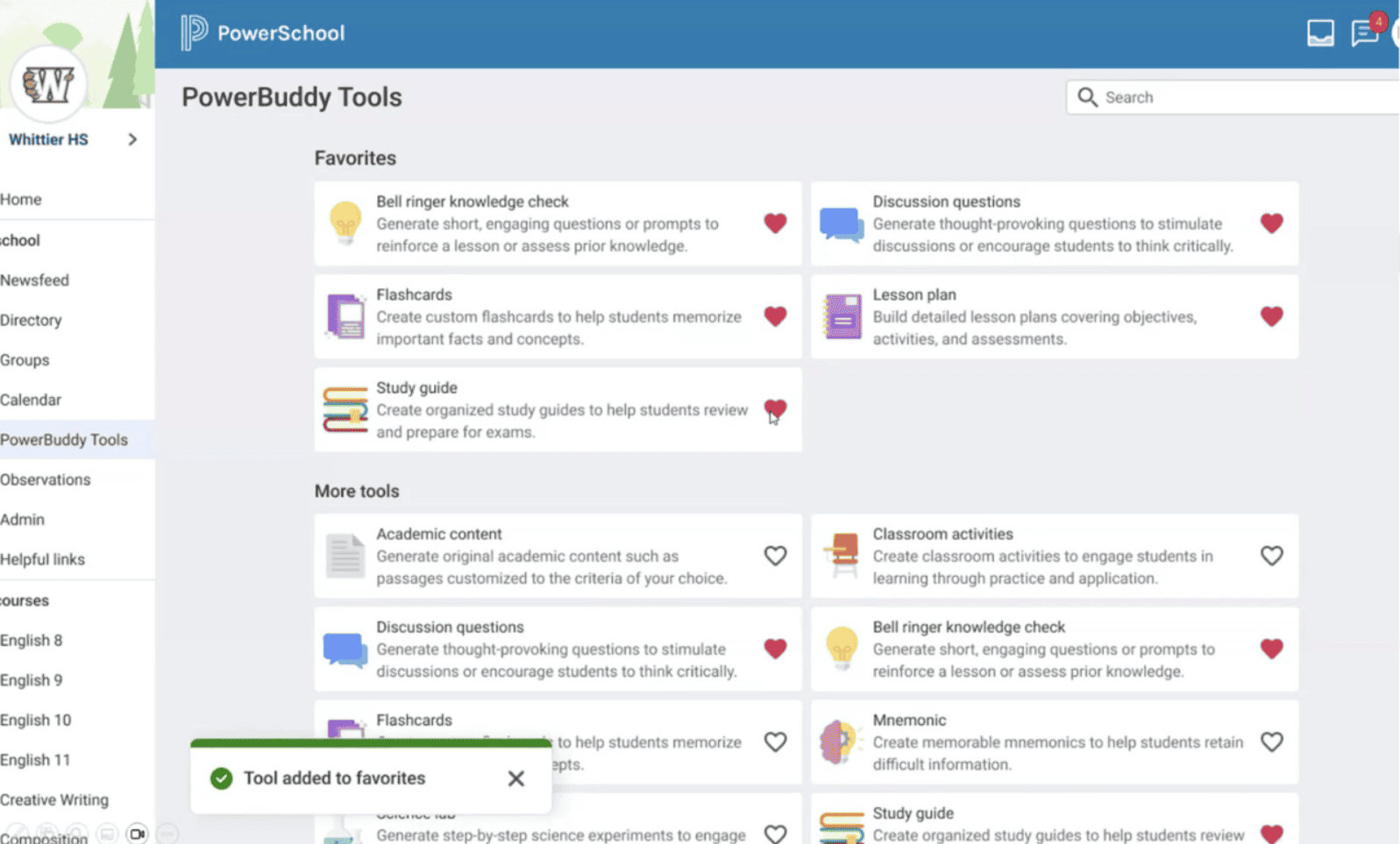
Here’s how admins can activate PowerBuddy in MyPowerHub Educator Portal:
- Log into the MyPowerHub Administrator Portal.
- Select Admin. Under Application Settings select MyPowerHub.
- Select Feature Management.
- Using the filters under Feature, select PowerBuddy Tools.
- Here you can make PowerBuddy Tools active or hidden for any school.
- When you have made your selections click Save.
Learn more about PowerBuddy
If you’d like to learn more about PowerBuddy or any other PowerSchool solution, please let us know and we’ll be happy to arrange a demonstration and consultation about how PowerSchool can help you improve education at your organization.